
Blog
Zoom Transcription: 4 Ways to Get Text from Any Meeting
 Resalt Published
Zoom remains the default for business calls: trillions of meeting minutes run through the platform every year. Someone has to retell each of those meetings. Good news: a Zoom meeting can be transcribed at least four ways — and not all of them require a paid plan.
Quick answer: the built-in transcription of cloud recordings works on paid plans and produces a VTT file with timestamps. AI Companion writes summaries, not full transcripts. Notetaker bots (Otter, Fireflies, tl;dv, mymeet, Resalt.app and others) join the meeting as a participant and work on any plan, including free. And if a recording file already sits on your disk, you can upload it to a transcription service.
Below we break down each method: how to enable it, what you get, where the limits are and what it costs.
First, the terms: transcript, summary and captions are not the same thing
Materials about Zoom often blur these words. Let’s separate them:
- Transcript — the full verbatim text of the meeting with timestamps. Searchable, quotable, pasteable into documents.
- Summary — short takeaways: decisions, next steps, key moments. Useful, but not a replacement for text.
- Captions — text on screen during the call. Great for accessibility, but not saved as a file by itself.
Why transcribe meetings at all: so you don’t have to retell them to colleagues, can find agreements quickly, quote a client verbatim, prepare minutes and build a knowledge base across projects. A full meeting text is a document you keep working with for months after the call.
Method 1. Built-in transcription of cloud recordings
A native Zoom feature few people know in detail. The mechanics are simple: the meeting is recorded to the Zoom cloud, and after it ends the platform automatically recognizes the speech and emails a notification. The transcript appears as a separate VTT file — text with timestamps that you can open alongside the video, download or edit in the web portal.
How to enable cloud recording transcription:
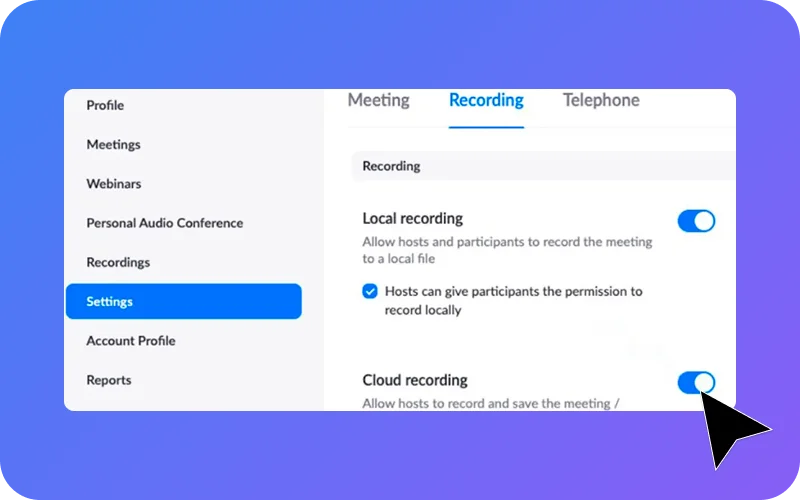
- Sign in to the zoom.us web portal as the account admin and open Settings → Recording tab.
- Turn on Cloud Recording.
- Under advanced cloud recording options, check “Create audio transcript” and click Save.
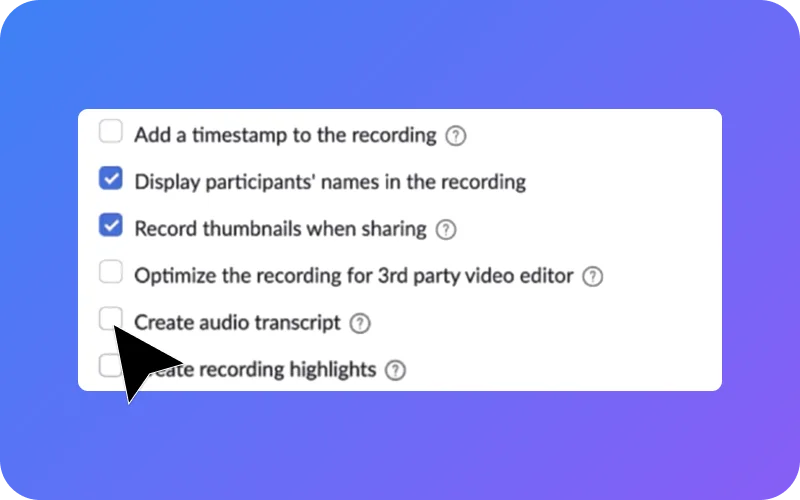
From this point on, every cloud-recorded meeting automatically gets a transcript. On the meeting itself, click Record → Record to the Cloud.
Where to find and download your transcript:
- After the meeting ends, open the Recordings section in the web portal.
- Find the meeting in the cloud recordings list and expand it.
- Next to the video and audio files you’ll see a transcript file in VTT format.
- Click Download to save it to your device.
Processing takes from a few minutes to a couple of hours — Zoom emails a notification when the transcript is ready.
Important: if the recording was local (saved to your computer), no native transcript will be created under any settings. The feature works only with cloud recordings — that is its main limitation.
What’s inside:
- Plan. A paid account is required: Pro, Business, Education or Enterprise with cloud recording enabled. Free plans have no cloud recording, and therefore no transcription.
- Languages. For years the feature worked with English only. In 2026 the list expanded: Zoom’s official documentation now includes Russian, Spanish, French, German, Ukrainian, Chinese and other languages. Availability depends on your plan and account settings — check your portal.
- Speakers. The transcript is split into timestamped sections, but speaker labels are basic: the system doesn’t always tell who spoke, especially with crosstalk.
- Editing. You can edit the text in the Zoom portal; corrections also feed the recording’s captions.
This method works well when your whole stack already lives in Zoom and your meeting language is supported. Weak points: tied to a paid plan, cloud-only recordings, and a bare output with no summary, tasks or structure.
One related feature deserves a mention: live auto-captions that Zoom shows on screen during the meeting. They are available more broadly than post-meeting transcription, support dozens of languages and can be toggled right on the meeting toolbar. Great for participants with bad audio or foreign colleagues — but remember: captions are a process, not a deliverable. To get text as a file after the meeting you still need cloud transcription or a third-party service.
Method 2. Zoom AI Companion: summaries instead of transcripts
AI Companion is Zoom’s built-in AI assistant. People often confuse it with transcription, but these are different tools: AI Companion reads the already-recognized text and produces takeaways on top of it.
What it does:
- Meeting Summary. Takeaways of the meeting: key points, decisions, next steps. The host starts the summary with a toolbar button or sets up auto-start — participants see a notification that AI is on. The finished summary is emailed to the host and lands in Team Chat; the host can share it with attendees.
- In-meeting questions. An attendee can ask the assistant what was said in the first ten minutes they missed, or check a detail without interrupting the speaker.
- Smart Recording. Cloud recording with automatic chapters, a speaker timeline and highlighted moments.
- My Notes. Personal notes collected across your meetings, including on third-party platforms.
Limitations, stated honestly:
- A summary is not a verbatim transcript. If you need full text you can search and quote, AI Companion won’t replace it — use Method 1 or 3.
- Start is controlled by the host, and at account level by the admin. If your company disabled AI features by security policy, the button simply won’t be there.
- Summaries can be inaccurate. Zoom’s own recommendations tell the host to review and edit takeaways before sharing.
- Available on paid plans.
On the plus side: Zoom states that it does not use customer audio, video or chat content to train its own or third-party models — an important point for companies with sensitive negotiations.
Method 3. Notetaker bots: recording and transcription on any plan
A separate category of services that join a Zoom meeting as a participant: Otter, Fireflies, tl;dv, MeetGeek, mymeet, Grain, Resalt and others. You paste the meeting link (or connect your calendar) — the bot joins the call, records the audio and after the meeting delivers a transcript with speaker labels, a summary and tasks.
What you get:
- Works on any Zoom plan, including free. No cloud recording or paid account needed — the bot records audio itself.
- Speakers and structure. Transcript with “who said what” labels, timestamps, full-text search, export to TXT, DOCX, SRT.
- Summaries and tasks. Most services immediately deliver takeaways, decisions and action items — what Zoom’s native transcription doesn’t provide.
- One searchable archive. Recordings accumulate in one place, ready to search and forward to colleagues.
- Integrations. Depending on the service, takeaways can flow automatically into a CRM, task tracker or team chat.
In practice, on the example of Resalt:
- Sign up at resalt.app and connect a calendar — Google, Outlook/Exchange or Yandex. You can also skip the calendar and paste meeting links manually.
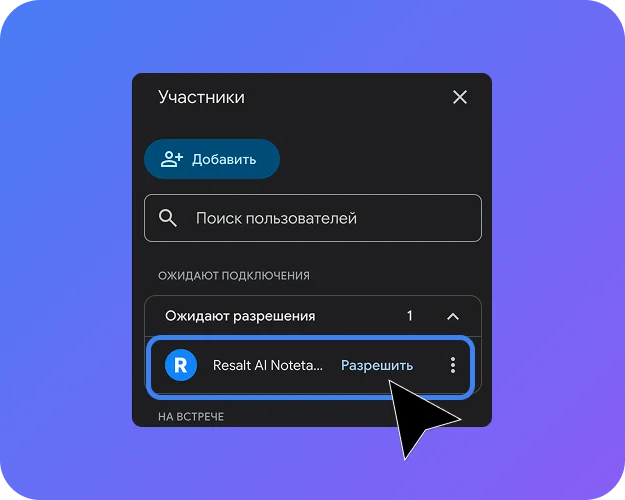
- Resalt reads your schedule and joins Zoom meetings automatically via the links in your events. Admit the bot from the waiting room — it records audio like a regular participant.
- A few minutes after the meeting ends, an email arrives with a link to the finished materials, and they appear in your dashboard: a transcript with speaker labels, a summary and a task list.
All the routine is a one-time setup.
Limitations, honestly:
- The bot is visible to participants as a separate guest. With external clients, etiquette requires warning them about recording — and in many jurisdictions it’s a legal requirement.
- If the Zoom waiting room is on, someone must admit the bot manually.
- Recording quality depends on how the bot connects to the audio stream; accuracy of Russian transcription varies a lot between services.
Pricing: most services have a free tier with limits, paid plans start around $8–10 per month; Russian-language options are often cheaper and accept local payment methods. A detailed comparison of services in this category is in our overview of AI meeting assistants.
Method 4. Local recording plus file upload
The most flexible and most underrated method. Use it when: the meeting already happened and only a file remains, you’re on Zoom’s free plan, the meeting was captured on a phone or voice recorder, or you need to transcribe someone else’s recording.
The mechanics: record the meeting locally (“Record on this Computer”), get an MP4/M4A file, upload it to a transcription service — and get the text within minutes.
How to upload a recording to Resalt:
- Download the meeting file from the Recordings section of the Zoom portal, or find the local recording on your disk — Zoom saves it as a folder with MP4 and M4A files.
- In your Resalt dashboard, click Upload and select the file — MP3, WAV, M4A, MP4, WebM, OGG and FLAC are supported.
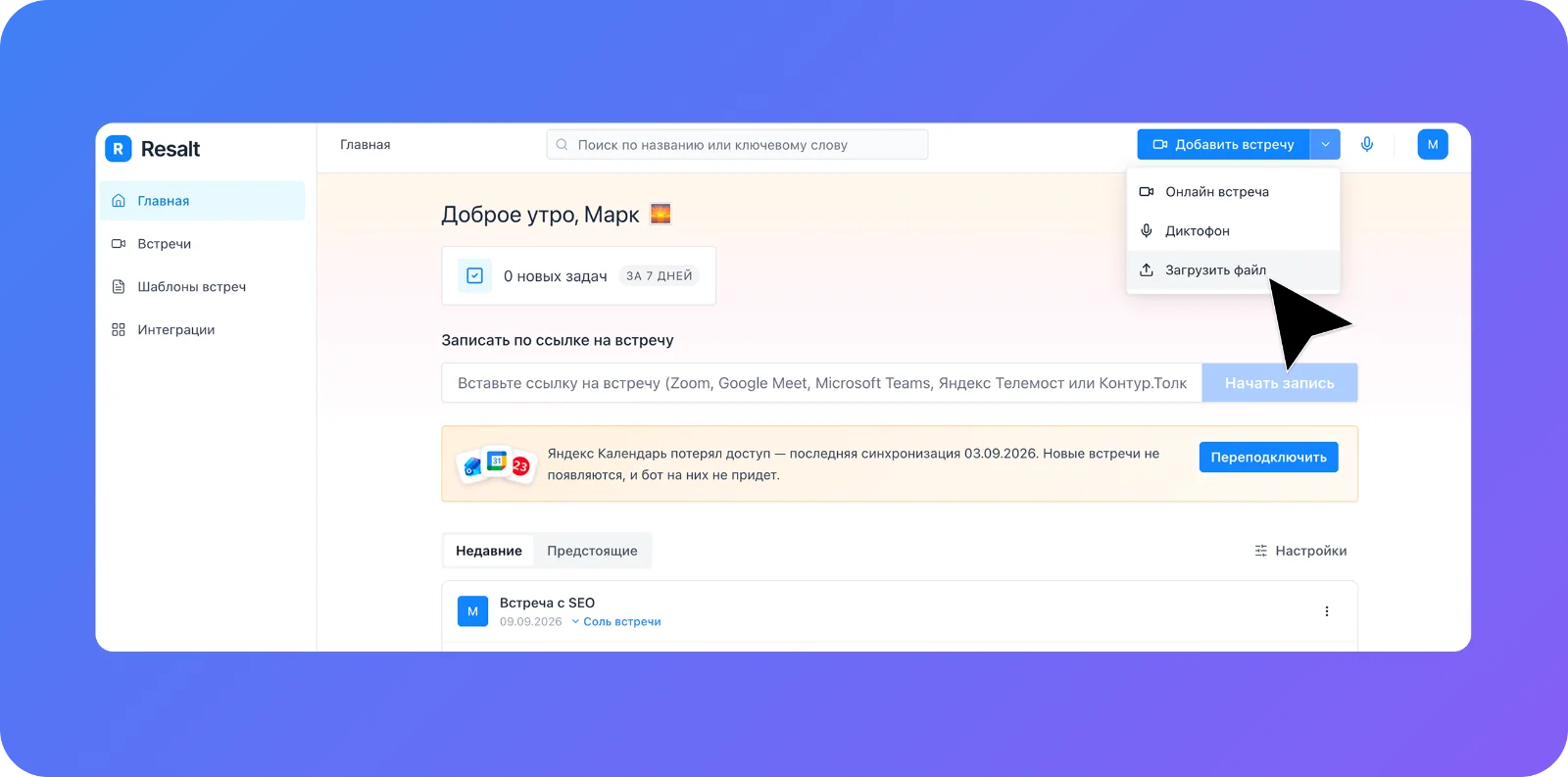
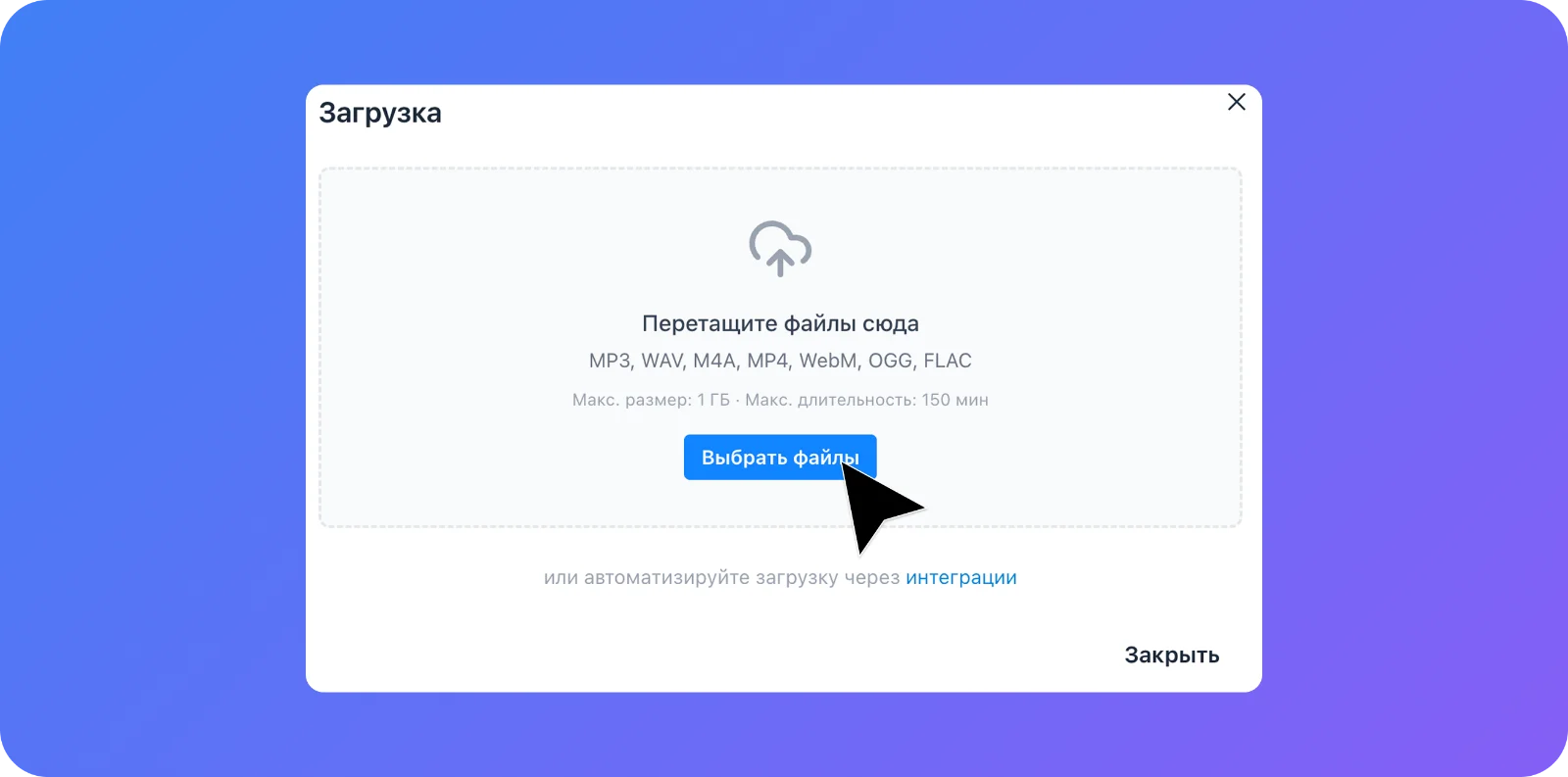
- Within minutes, a transcript with speaker labels and a structured summary appear in your dashboard, and a ready notification lands in your inbox.
Pros:
- Works with any recording, not just fresh ones: archived meetings from years ago transcribe the same way.
- Requires no changes to Zoom settings and doesn’t depend on your plan.
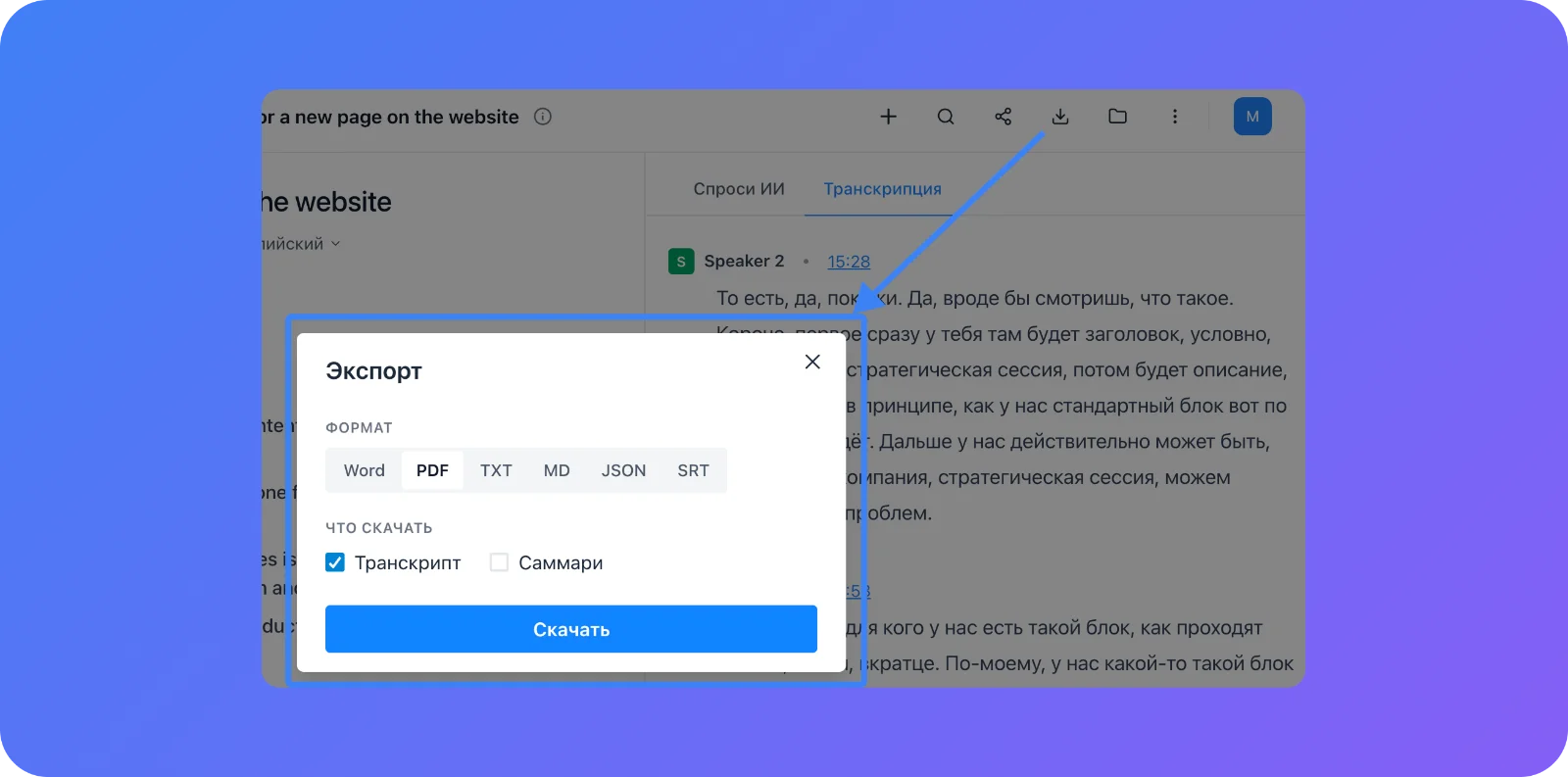
- Transcription services support dozens of languages and return speaker labels, summaries and exports in multiple formats.
- Handles recordings made outside Zoom: voice memos, phone interviews, camera video.
The cons are the manual steps: record, find the file, upload. No automation, so the method loses to bots for recurring meetings — but wins for one-off tasks and old recordings.
A few practical details. For transcription, the M4A audio track is enough — it’s lighter than video and uploads faster. Before uploading, check the service’s limits on file size and duration: free tiers usually restrict both. In Resalt.app, for example, the free plan covers five file uploads up to 100 MB and 150 minutes each, while bot and voice recorder transcription is unlimited.
Comparison of methods
| Method | What you need | What you get | Weak point |
|---|---|---|---|
| Cloud recording transcription | Paid plan + cloud recording | VTT with timestamps | Cloud only, no summary |
| AI Companion | Paid plan, feature enabled | Summary, chapters, Q&A | Not a full transcript |
| Notetaker bot | Meeting link | Transcript + summary + tasks | Bot visible in participant list |
| File upload | A recording file | Transcript + summary | Manual steps |
How to choose
Five questions that narrow it down to one option:
- What’s your Zoom plan? Free — go straight to bots or file upload: no cloud recording or AI Companion there.
- Need full text or takeaways? Takeaways only — AI Companion. If you need to quote, search and forward text — transcription by any of the other methods.
- What language do you speak? English meetings are covered by any method. For Russian-language meetings, check the quality of Russian transcription in a specific service — it varies.
- How regular are the meetings? Once a month — file upload is enough. Several calls a week — only bot automation will do.
- What are your data requirements? For negotiations with sensitive information, look at encryption, compliance with personal data law (152-FZ for Russian companies, GDPR for EU) and recording storage terms.
Common problems and fixes
No transcript after the meeting. Almost always the same cause: the recording was local, and the feature works with cloud recordings only. Or the “Create audio transcript” option wasn’t enabled before the meeting — you can’t enable it retroactively, only for new recordings. The transcript is English only. Check the language setting in the portal: language support is rolling out gradually, and some plans have a limited list. If your language isn’t available, upload the recording to a third-party service. The bot can’t join the meeting. The waiting room is on: the host must admit the bot manually. The fix — allow the bot’s domain in Zoom settings, or use bots for internal meetings only. Too many errors in the text. The cause is almost always audio: a bad microphone, speakers off-mic, crosstalk. Feed the agent clean sound — accuracy improves more than from switching services. The file is too large to upload. Long meetings in high quality weigh gigabytes. The way out: extract the audio track (that’s where all the speech lives) or compress the file — transcription accuracy barely suffers. Need to transcribe someone else’s recording. No Zoom setting will help — the meeting ran in someone else’s account. The only path: ask for the recording file and upload it to a transcription service.
FAQ
Can I transcribe a Zoom meeting for free?
Yes, two ways. First: notetaker bots — most have a free tier, and the bot joins and records by itself. Second: record the meeting locally and upload the file to a transcription service — many offer a free starting quota. Zoom’s native transcription doesn’t work on the free plan: it requires a paid plan with cloud recording. Does Zoom AI Companion provide a full meeting transcript?
No. AI Companion prepares a summary — takeaways, decisions and next steps based on the recognized text. The full verbatim transcript comes only from the cloud recording transcription feature or from third-party bots and file-upload services. If you need both, combine native transcription with a summary, or pick a bot that does everything at once. In what formats can I download a Zoom transcript?
Zoom’s native cloud recording transcription delivers a VTT file — text with timestamps, suitable for captions and side-by-side viewing with the recording. Third-party services export more widely: TXT, DOCX, PDF, SRT, JSON — for documents, publishing and editing. If you plan further processing, check export formats before choosing a service. Can I transcribe a meeting that happened a month ago?
The native transcript is only created if the option was enabled before the recording — it can’t be enabled retroactively. But the old recording itself can always be transcribed: download the meeting file from your recordings section and upload it to a transcription service. For archived meetings this is the only working path. Do I need to warn participants about recording and transcription?
Yes. Participants must know the meeting is being recorded: etiquette, company policy and personal data law all require consent to record. Notetaker bots are visible in the guest list and AI Companion shows an activation notice — but warn people verbally at the start of the meeting instead of relying on the interface.
Takeaways
There’s no single best way to transcribe Zoom — there’s the way that fits the task. Native transcription covers basic needs on paid plans. AI Companion saves time on takeaways but doesn’t replace full text. Bots give maximum automation and work on any plan. File upload is the universal fallback for any recording.
If you run many meetings and want a single archive with transcripts, summaries and tasks — try Resalt’s free plan: a bot joins your Zoom meetings, transcribes speech in Russian and other languages, old recordings connect through file upload, and the Pro plan costs 2,500 ₽ per month.
Read also:
- Meeting Transcription: How to Turn a Call into Text
- Transcribe Audio to Text: How to Choose a Service
- AI Assistant for Meetings: 7 Services for Recording and Summaries Sources: official Zoom documentation (support.zoom.com) on cloud recording transcription and AI Companion, 2026.
Frequently asked questions
Can I transcribe a Zoom meeting for free?
Yes, two ways. First: notetaker bots — most have a free tier, and the bot joins and records by itself. Second: record the meeting locally and upload the file to a transcription service — many offer a free starting quota. Zoom's native transcription doesn't work on the free plan: it requires a paid plan with cloud recording.
Does Zoom AI Companion provide a full meeting transcript?
No. AI Companion prepares a summary — takeaways, decisions and next steps based on the recognized text. The full verbatim transcript comes only from the cloud recording transcription feature or from third-party bots and file-upload services. If you need both, combine native transcription with a summary, or pick a bot that does everything at once.
In what formats can I download a Zoom transcript?
Zoom's native cloud recording transcription delivers a VTT file — text with timestamps, suitable for captions and side-by-side viewing with the recording. Third-party services export more widely: TXT, DOCX, PDF, SRT, JSON — for documents, publishing and editing. If you plan further processing, check export formats before choosing a service.
Can I transcribe a meeting that happened a month ago?
The native transcript is only created if the option was enabled before the recording — it can't be enabled retroactively. But the old recording itself can always be transcribed: download the meeting file from your recordings section and upload it to a transcription service. For archived meetings this is the only working path.
Do I need to warn participants about recording and transcription?
Yes. Participants must know the meeting is being recorded: etiquette, company policy and personal data law all require consent to record. Notetaker bots are visible in the guest list and AI Companion shows an activation notice — but warn people verbally at the start of the meeting instead of relying on the interface.