
Blog
Resalt MCP Server: Connect Claude and ChatGPT in 5 Minutes
 Resalt Published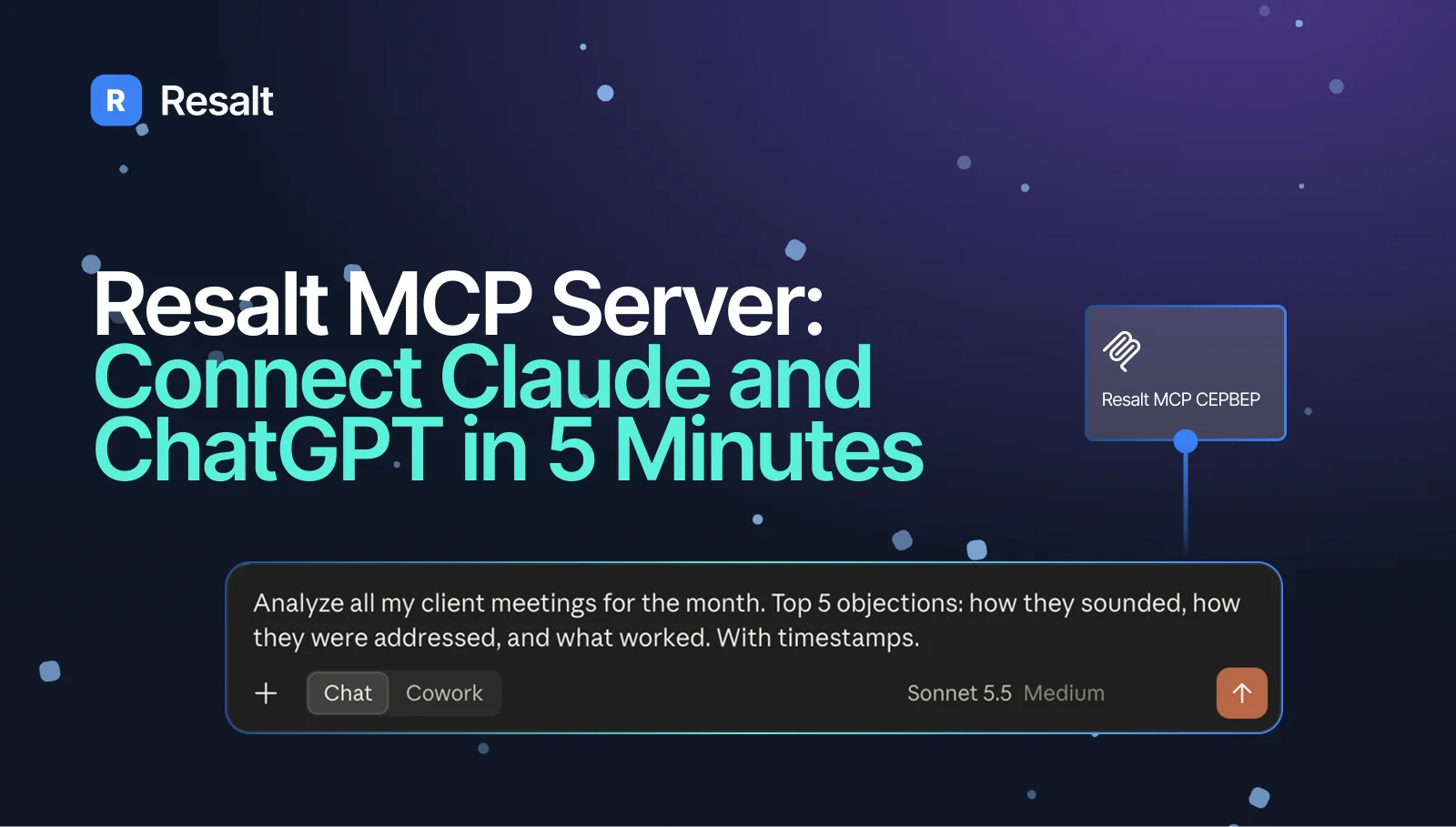
On October 10, 2026, Resalt launched its MCP server: Claude, ChatGPT, Cursor, and other AI agents can now work with your meetings directly. Ask an agent “what did we decide about the budget on Tuesday’s call” — and get an answer with a timestamp, without opening a single transcript.
Meeting context sits unused for months: transcripts, summaries, task lists, agreements. AI agents — which people increasingly delegate work to — cannot see any of it, so answering a question about last week’s call means manually pasting transcripts into a chat. The Resalt MCP server closes that gap: the agent finds the right meeting, reads the summary, searches your entire library by meaning, and, with your permission, starts a recording. One connection replaces the copy-paste routine before every request.
In this article: how the server works, what its 15 tools do, step-by-step setup for popular clients, and practical scenarios for sales, product, HR, and managers.
What is the Resalt MCP server
The Resalt MCP server is the official connector that exposes your meeting data to AI agents over the Model Context Protocol. It runs at my.resalt.app/api/mcp, supports the Streamable HTTP transport, and offers two authentication methods:
- OAuth 2.1 (recommended): add a connector with the server URL in your client and press “Sign in”. Access is confirmed on the Resalt page, where you can also grant write permission. No keys to copy anywhere.
- API key: for scripts, CI, and clients without OAuth support. Create the key under “Settings → MCP & API” and pass it in the Authorization header.
One point matters: Resalt runs the server itself, inside its own infrastructure. Your data does not pass through third-party MCP broker platforms that resell access to other people’s servers. If the protocol basics feel shaky, start with what MCP is; for a comparison of meeting MCP servers — Fireflies, Grain, Otter, mymeet, and Resalt — see the separate overview.

What the server can do: 15 tools
The tools split into two groups. Nine read tools are always available. Six action tools are registered only when the “Allow changes” toggle is on — without it, the agent physically cannot see recording tools or modify any meeting data.
| Tool | What it does | Type |
|---|---|---|
| list_meetings | List meetings with filters: title, date, status, participant | read |
| get_meeting_status | Processing status: is the summary ready, is the bot recording | read |
| get_active_meetings | What is happening now: bot live, meeting in processing | read |
| get_summary | Meeting summary: gist, key points, decisions, topics | read |
| get_transcript | Full transcript with timestamps and speaker names | read |
| semantic_search | Meaning-based search across all meetings at once | read |
| list_calendar_events | Events from connected calendars, including meetings without recordings | read |
| export_meeting | Export a meeting as md, json, pdf, or docx | read |
| get_analytics | Aggregated analytics for a period (Business plan only) | read |
| start_recording | Send the recording bot to a live meeting by URL | action |
| stop_recording | Stop recording: the bot leaves, audio goes to processing | action |
| regenerate_summary | Regenerate the AI summary (costs 1 AI credit on Free) | action |
| rename_meeting | Rename a meeting | action |
| share_meeting | Share a meeting with a registered user | action |
| revoke_share | Revoke access to a shared meeting | action |
Errors come back with a built-in hint about the next step: if the summary is not ready yet, the server suggests checking status via get_meeting_status; if the bot is busy, it explains how to check the queue position; when you hit a limit, it tells you when it resets. The agent does not have to guess the protocol — the server walks it through.
Real-world use: scenarios and prompts
The value of the server depends on your role. Below are four working scenarios with copy-paste prompts — adjust the details to your tasks.
Sales: collect a month of objections. The agent goes through every client meeting and lists recurring objections — work that would take a manager hours of listening.
“Find all my meetings from September where I talked to clients. List the objections that came up most often, with links to the meetings and timestamps.”
Sales: keep track of promises. Calls with clients end with constant promises: materials, prices, demos. The agent consolidates every promise into one list with deadlines.
“Review all client meetings from this week: what did we promise clients, to whom, and by when? A list of promises with deadlines.”
Product: consolidate user feedback. Wishes scattered across dozens of interviews turn into one structured picture with frequency counts.
“Collect all user requests from this quarter’s interviews. Group them by theme, note how often each theme came up and who asked.”
HR: compare candidates. After a round of interviews, the agent produces a comparison table without manually rereading notes.
“Compare candidates for the [title] role based on interview outcomes: experience, salary expectations, strengths and weaknesses. Format as a table.”
HR: debrief after an interview. While impressions are fresh, the agent turns the recording into a structured profile and highlights what to verify next.
“Find yesterday’s interview for the [title] role. A profile of the candidate: experience, strengths and weaknesses, salary expectations, my doubts. What should we verify at the next stage?”
HR: find experience by meaning. Candidates phrase things differently: some say “ran a department”, others “led a team of 15”. Semantic search finds meaning, not exact words.
“Which candidates were asked about team management over the past six months? Show what they answered.”
Team analysis: tasks and blockers. The agent goes through all team meetings and shows what is actually moving and what is stuck.
“Analyze our team meetings for this month: what tasks we set, what is done, what is stuck and why. List the recurring blockers separately.”
Team analysis: retros without the routine. Notes from quarterly retros roll up into themes — you can see what the team keeps asking for, sprint after sprint.
“Collect all team feedback from retrospectives this quarter. Group by theme and note what repeats from sprint to sprint.”
Team analysis: Lencioni’s five dysfunctions. Patrick Lencioni’s classic model arranges team dysfunctions as a pyramid: trust, conflict, commitment, accountability, results. The agent runs transcripts through the framework and finds live manifestations — from “nobody argues in meetings” to “deadlines slip silently”.
“Analyze our team meetings this quarter through Patrick Lencioni’s Five Dysfunctions of a Team model: absence of trust, fear of conflict, lack of commitment, avoidance of accountability, inattention to results. For each level, give 2-3 examples from our meetings with timestamps: who said what. Final output: which level is weakest and where to start.”
Team analysis: engagement. The get_analytics tool tracks sentiment and engagement across meetings; available on the Business plan.
“Give me analytics for our meetings this quarter: team sentiment and engagement dynamics, who stays silent in meetings.”
Manager: keep track of decisions. Check that last week’s agreements are not lost and tasks are not stuck.
“Review last week’s meetings: what tasks are assigned to me and my team, what are the deadlines, which decisions were brought up again.”
Meeting prep. The calendar inside the server gives the agent your schedule context: before a call, you can pull the entire history with a counterparty in one question.
“What’s on my calendar this week? Pull up summaries of past meetings with [client] and remind me what we promised and what we are waiting for.”
One detail matters for teams in the CIS: the prompts work in Russian just as well. The agent searches Russian transcripts, understands formal and informal address, and answers in Russian.
A separate class of scenarios is actions over MCP. With the “Allow changes” toggle on, you can delegate operations that used to require opening the app: “Record tomorrow’s meeting at this link” — the bot joins Zoom, Google Meet, Yandex Telemost, or Kontur.Tolk; “Regenerate the summary using the retro template”; “Share the recording with a colleague”. For automation scenarios (say, a weekly export of all client meeting summaries into a folder), use an API key: paste it into a script and run it on a schedule.
How to connect: the general flow
Setup takes about a minute and boils down to three steps:
- Get access: “Settings → MCP & API” → “Sign in” for OAuth, or “Create key” for an API key.
- Set the server URL in your client: my.resalt.app/api/mcp.
- For OAuth, confirm access on the Resalt page (the changes toggle lives there too). For a key, paste it into the client configuration.
Step-by-step instructions for specific clients follow.
Claude (claude.ai)
claude.ai connectors do not accept arbitrary HTTP headers, so for manual setup the key goes directly into the server URL:
- Open “Settings → Connectors” and click “Add custom connector”.
- Name: Resalt. Server URL: my.resalt.app/api/mcp?api_key=YOUR_KEY.
- Under authentication choose “No login” and ignore the warning: authorization happens via the key inside the URL, not through OAuth redirect.
If your client version supports OAuth sign-in, prefer it: add a connector with the bare URL my.resalt.app/api/mcp and confirm access with the “Sign in” button — no keys in the configuration.
ChatGPT
Custom ChatGPT connectors have the same constraint: no arbitrary headers, the key goes into the URL.
- In the web app, open “Settings → Apps & Connectors → Advanced settings” and enable developer mode (availability depends on your OpenAI plan).
- Create a connector: name Resalt, URL my.resalt.app/api/mcp?api_key=YOUR_KEY, authentication: None.
- Save — and ask about your meetings right in the chat.
Claude Desktop
The claude_desktop_config.json file only accepts local servers, so a remote server with a header connects through the mcp-remote wrapper:
{
  "mcpServers": {
    "resalt": {
      "command": "npx",
      "args": [
        "mcp-remote",
        "https://my.resalt.app/api/mcp",
        "--header",
        "Authorization: Bearer YOUR_KEY"
      ]
    }
  }
}
Replace the key, save the file, and restart Claude Desktop — the connector loads on launch.
Cursor
In Cursor, remote servers connect directly, no wrapper, in the .cursor/mcp.json file:
{
  "mcpServers": {
    "resalt": {
      "url": "https://my.resalt.app/api/mcp",
      "headers": { "Authorization": "Bearer YOUR_KEY" }
    }
  }
}
Other clients
Other tools connect the same way: server URL plus a key in the header. Individual clients have nuances:
- Claude Code: run
claude mcp add --transport http resalt https://my.resalt.app/api/mcp --header "Authorization: Bearer YOUR_KEY". - Gemini CLI: use the httpUrl field — the url field in this client means the legacy SSE transport and will not work.
- YandexGPT: in AI Studio, connect an external server via MCP Hub and attach it to an agent.
- Kimi Code: supported in Kimi Code CLI (command
kimi mcp add --transport http) and in the Kimi Code extension for VS Code (“MCP Servers” menu). The Kimi web app does not accept custom servers yet. - OpenClaw: add the server to the openclaw.json configuration file under mcp.servers — Resalt tools then become available to OpenClaw agents.
[Picture fig-07-3-clients: tiles with client logos (Claude, ChatGPT, Cursor, Claude Code, Gemini, Kimi Code), one line per tile with the connection method. Caption: one server — any client.]
If a client reports a 405 error, it is trying to talk to the server over the old SSE transport: the server only supports Streamable HTTP. In mcp-remote, fix it with the --transport http-only flag. A 401 error, in turn, almost always means the key was not substituted into the configuration — check that YOUR_KEY in the examples is replaced with a real one.
Plans and limits
The MCP server is available on every Resalt plan, including the free one. The daily limit counts tool calls (read and write share one counter); protocol overhead does not consume it. Of all tools, only regenerate_summary spends AI credits: 1 credit per call on Free, free on Pro and Business.
| Plan | Keys | Calls per day |
|---|---|---|
| Free | 1 | 10 |
| Pro | 1 | 500 |
| Business | 1 | unlimited |
All plans share a per-minute safeguard: 60 calls per minute per key. When you exceed the daily limit, the server returns a 429 error with the reset time — the next UTC midnight.
Limitations: what the server cannot do yet
An honest list of limitations helps you choose a tool without surprises:
- Streamable HTTP only. Clients on the old HTTP+SSE transport cannot connect and will get a 405 error.
- The calendar tool does not return meeting links: they contain join credentials. The agent sees time, platform, participants, and whether a recording exists.
- get_analytics is available on the Business plan only; on Free and Pro, basic counters can be collected via list_meetings.
- The calendar must be connected to Resalt in advance: without it, list_calendar_events returns an empty list, not an error.
- Clients without custom MCP support (for example, the Kimi web app) cannot take the server at all — regardless of configuration.
Security and data
Connecting meetings to an external agent is always a trade-off, and honest services say so plainly. Three principles of the Resalt MCP server:
- Least privilege by default. Without the “Allow changes” toggle, the agent sees only the nine read tools. Recording, sharing, and summary regeneration open separately and close with a single switch.
- Access control. OAuth access is revoked per application in the admin panel; the API key is visible only to its owner and stored in account settings. OAuth tokens live for 24 hours, refresh with rotation, and are stored on the server as hashes.
- An honest note about the boundary. Once an agent in Claude or ChatGPT receives your data, it is processed under that platform’s rules. Resalt does not control how long the client keeps the conversation context or whether it uses the data for model training. If your organization has strict data-handling requirements, connect MCP only where external AI processing is allowed. Resalt itself processes data under Federal Law 152-FZ with AES-256 encryption. The same applies to exports: pdf and docx documents are downloaded directly by the agent, with no intermediate links — from then on, they live in the client environment under its rules.
The MCP server turns your meeting archive into a working knowledge base for AI agents: one address, one sign-in, fifteen tools. You can start on the free plan: connect the server to Claude or ChatGPT and ask a question that would normally take half an hour of digging through notes.
Read next: what MCP is, in plain language and the comparison of meeting MCP servers: Fireflies, Grain, Otter, Mymeet, and Resalt.
Frequently asked questions
What is the Resalt MCP server?
It is Resalt's official connector over the Model Context Protocol. It runs at my.resalt.app/api/mcp and lets AI agents — Claude, ChatGPT, Cursor, and others — read summaries, transcripts, and calendars, search meetings, and, with the user's permission, start recordings and manage meetings.
Is the Resalt MCP server free?
Yes, the server is available on every plan, including Free. Limits: Free — 10 tool calls per day, Pro — 500, Business — unlimited; plus 60 calls per minute on any plan. Setup takes about a minute and requires no separate payment.
How do I connect Resalt to Claude?
Two ways. Via OAuth: add a connector in Claude with the URL my.resalt.app/api/mcp and confirm with the "Sign in" button. Via API key: add the api_key parameter with your key to the connector URL and choose "No login" authentication. Create the key in Resalt under "Settings → MCP & API".
Why does my agent not see the recording tools?
Action tools require the "Allow changes" toggle in the key settings, or the checkbox on the OAuth consent page. Without it, the agent gets only the nine read tools — a safeguard against accidental changes to meeting data.
Is it safe to give an agent access to my meetings?
Data leaves Resalt's perimeter and is then processed under the client platform's rules, so connect the server only where external AI processing is allowed. Inside Resalt, AES-256 encryption and 152-FZ processing apply, and default permissions do not let the agent change anything.
What should I do about a 429 or 405 error?
429 means the daily plan limit was exceeded: on Free it is 10 calls; the server tells you when the limit resets. 405 means the client uses the legacy SSE transport; switch it to Streamable HTTP — in mcp-remote, use the `--transport http-only` flag.